File Manager
Designed to optimize your workflow and provide clear, efficient navigation, it allows you to perform various operations on your files, while also
offering advanced features.
The file manager is accessible from the Personal Files, Spaces, and Shared with Me menus.
Features
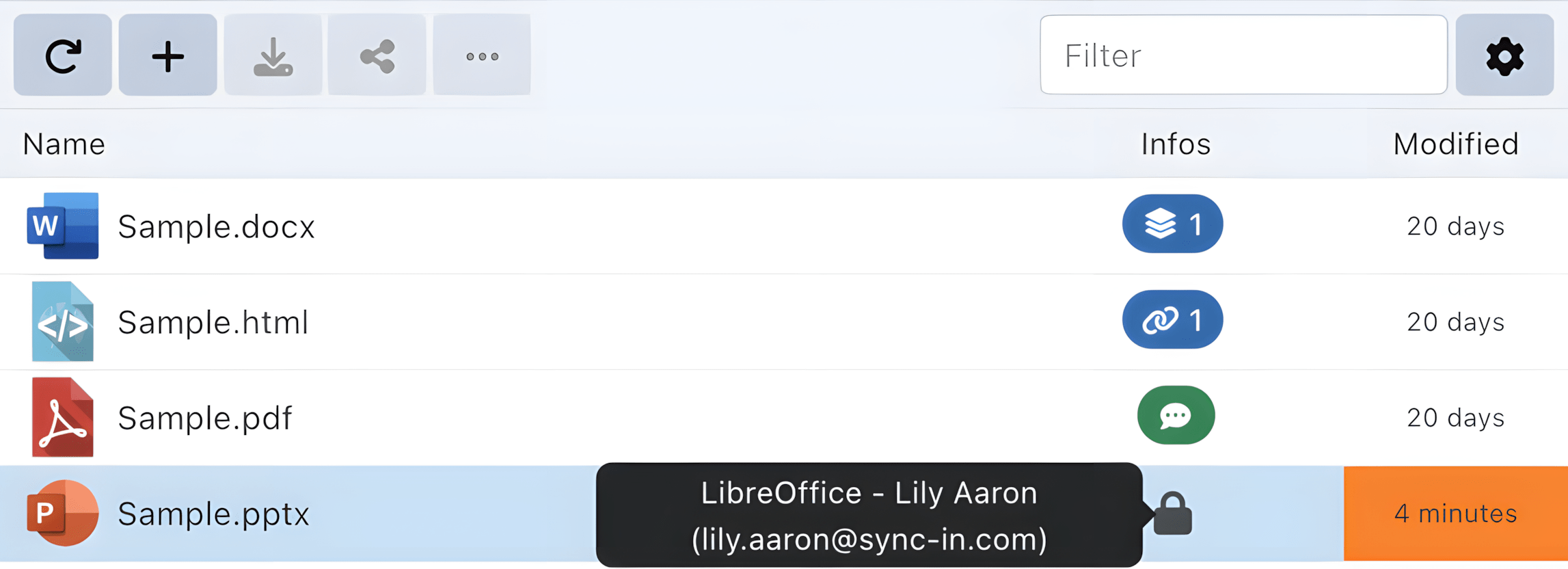
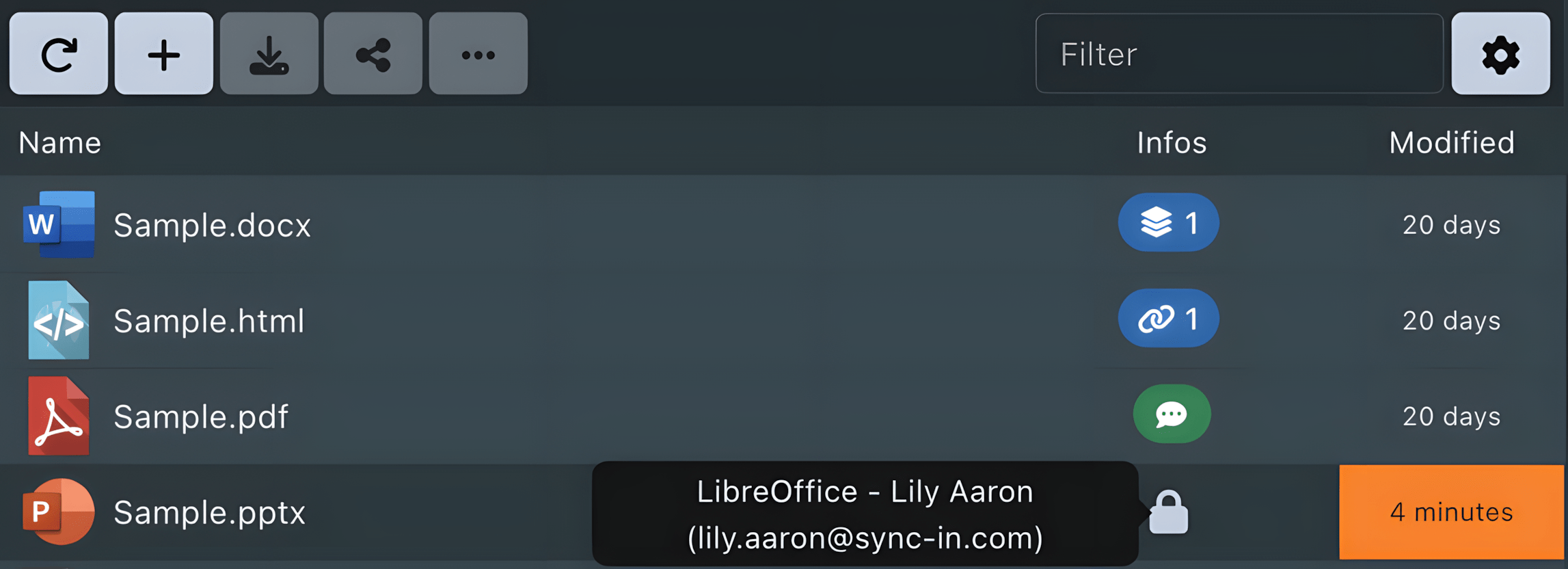
🗂️ Visible metadata: display of document status (shared, synchronized, pinned, commented, locked) directly in the file browser.
💬 Comments: ability to add and view comments directly on files to facilitate collaboration.
⚙️ Background tasks: uploads, downloads, archive creation and extraction, copies, moves, and deletions are processed in the background. Heavy operations are queued and limited per user, remain visible after reconnection, and can be canceled from the task panel when the operation supports it.
🔒 File locking: management of concurrent modifications from the web interface, WebDAV, and the synchronization module.
🗂️ Window manager: simultaneous opening of multiple documents with easy navigation between windows.
📄 Enhanced viewer: display of documents, media, and text files with syntax highlighting support.
🖼️ Advanced image viewer: browsing of all images in the current directory, slideshow launch, fullscreen mode, and display of detailed properties.
✍️ Integrated text editor: native editing of text files with search and syntax highlighting features.
🎯 Focus: quick location of a file regardless of its position in the directory tree, accessible from recent files, comments, or tasks.
⭐ Favorites: mark a file as a favorite and find it in the dedicated Favorites view, regardless of whether it is stored in personal files, a collaborative space, or a share.
🖼️ Gallery view: display of files as thumbnails for visual navigation.
🔁 Sorting: file sorting by name, size, or modification date.
🖱️ Drag and drop: adding and moving files or folders via drag and drop.
🔍 Quick filtering: filtering of the current folder content via the Filter field (Ctrl/Cmd + F).
⌨️ Keyboard shortcuts: support for standard shortcuts Ctrl/Cmd + C / X / V for copy, cut, and paste, with clipboard integration.
🎯 Multiple selection: enable one-click selection mode from the display controls, or use Ctrl/Cmd + click and Shift + click. The Selection
panel shows the number of files and folders, progressively calculates folder sizes, and lets you apply clipboard, copy/move, download, or compression
actions directly to the current selection.
🌳 Tree navigation: folder navigation via the directory tree using double-click.
📝 Collaborative editing: integration with Collabora Online, OnlyOffice, or Euro-Office enabling collaborative editing of text documents, spreadsheets, and presentations from the web interface, with support for Microsoft Office and OpenDocument formats depending on the configured editor.
File Actions
You can perform various operations on your files, just like in a traditional file explorer:
- 📂 Open: lets you browse the content and edit documents without downloading them.
- Folder: opens the selected folder in the navigation area
- File: read-only preview directly in the interface
- 🆕 New: create or add content to your workspace.
- Folder
- Document: text, spreadsheet, presentation…
- File from URL: direct download from a link
- Import files or folders: upload from your device; if names already exist, choose whether to replace them, skip the existing files, or cancel
- 📥 Download: retrieve your files locally.
- Single file: direct download
- Folder: an archive (compressed or not) is automatically generated
- 🗜️ Compress: create a ZIP, TAR, or TGZ archive from the selected files and folders, to download or store in the current location.
- 📦 Extract: extract a supported ZIP, TAR, TGZ, or GZIP archive into the current location.
- 📝 Rename: change the file name.
- 🔀 Copy / Move: duplicate or move files using the destination sidebar, which exposes the available repository roots and lets you browse to the target folder. When conflicts are detected, existing files can be replaced or skipped.
- 📋 Clipboard: lets you select files or folders, even from different directories.
The selection can then be used for copy/paste, cut/paste, download, or compression. - 💬 Comment: add remarks or collaborative notes on a file.
- ℹ️ Information: displays file metadata (size, date, author…).
- ⭐ Favorite: add the file to Favorites or remove it from the list.
- 🔗 Share: manage sharing options for a file or folder.
- Create a share with users, groups, or guests, and set permissions
- Generate a secure sharing link for external users
- Pin the file to an existing space
- 🔄 Synchronize: sync a folder with a local directory on your computer (available only via the desktop application).
- 🗑️ Delete: send the file to the trash.
- ❌ Permanently delete: from the trash, delete the file irreversibly.
Task Panel
The task panel provides a central view of queued, running, completed, failed, and canceled file operations. When progress can be measured, it displays the processed size or item count instead of only a running state. Canceling a task stops the remaining work and the panel reports its final state.